Lingopie’s learning games turn passive watching into active practice, helping you remember vocabulary, reinforce comprehension, and practice sentence structure — all using content from the shows you watch. The four games are Flashcards, Pop Quiz, Word Master, and Sentence Wizard.
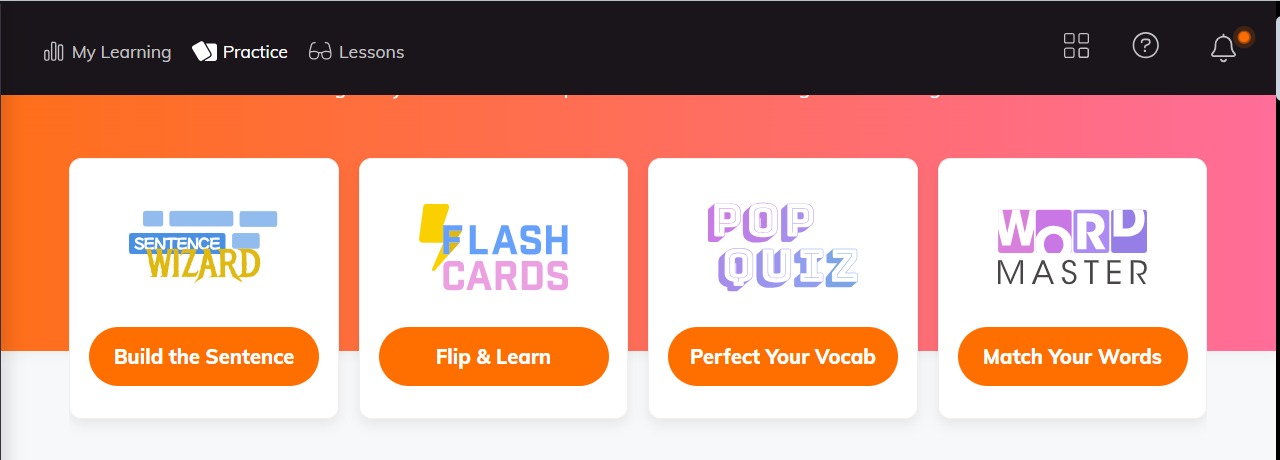
Where to find the games
Open the Practice section from the main menu to access all four games. Saved or reviewed words and sentences also appear under My Vocab and My Sentences, allowing you to revisit them anytime.
1) Sentence Wizard — practice sentence structure (Advanced)
How it works
- Sentence Wizard challenges you to organize parts of a sentence correctly, helping you learn grammar and word order in context.
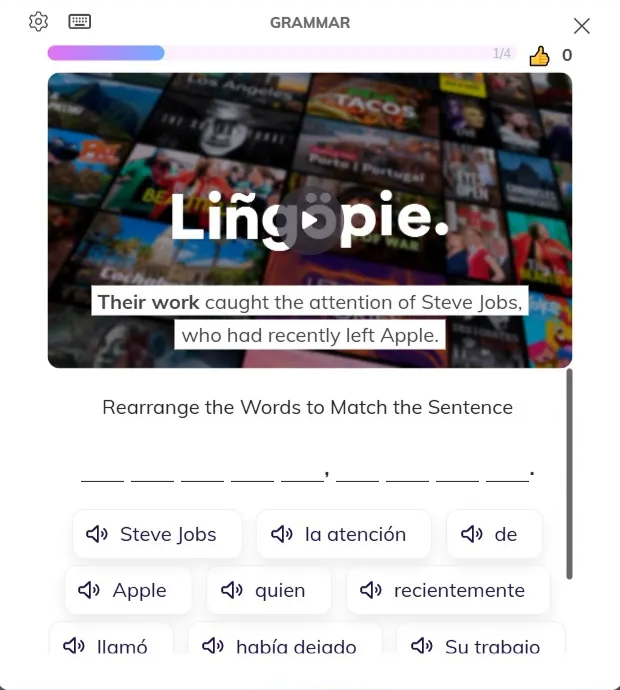
Step-by-step: Play Sentence Wizard
- Open Sentence Wizard in Practice.
- A sentence is presented with its parts scrambled.
- Drag or tap the parts to assemble the sentence correctly.
- Click Check to see if your sentence is correct.
Recommended for: Advanced learners looking to practice complex sentence structure and grammar.
2) Flashcards — review and memorize words and phrases (Intermediate)
How it works
- As you watch a video, click on a word or phrase to save it. It’s automatically added to your vocabulary and flashcard deck.
- Flashcards use spaced repetition, so words you struggle with appear more often until you remember them.
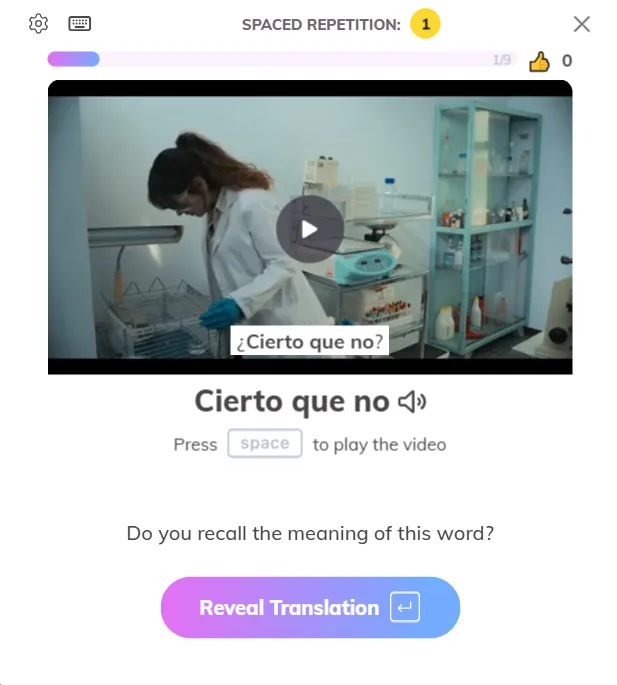
Step-by-step: Review your Flashcards
- Play any video and click on words/phrases to save them.
- Open the Flashcards game in Practice.
- Reveal the translation for each word or phrase.
- Indicate whether you remembered it correctly.
- Move to the next item — words you don’t remember will appear more frequently in future sessions.
Recommended for: Intermediate learners who want to build and reinforce their vocabulary.
3) Pop Quiz — test your vocabulary knowledge (Intermediate)
How it works
- Pop Quiz presents words from your saved vocabulary in the context of the original video.
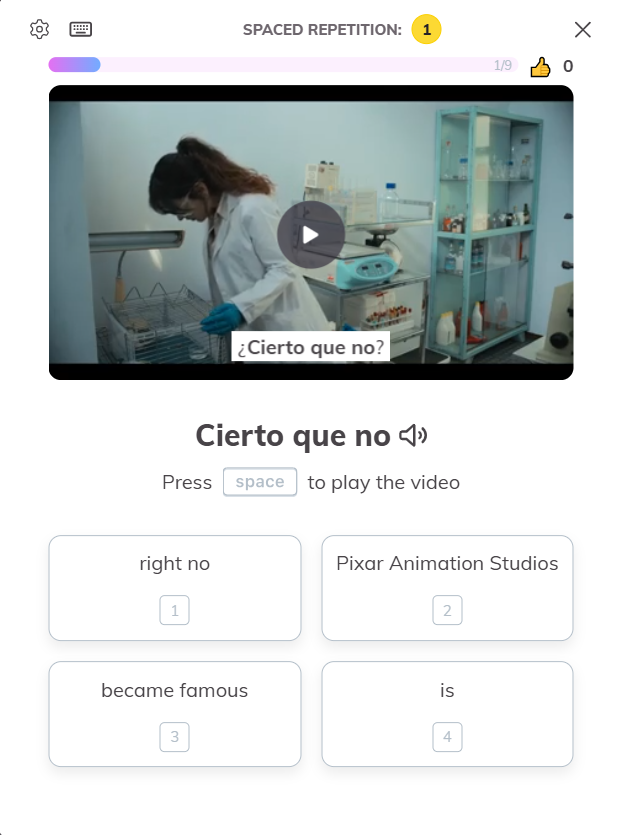 Step-by-step: Play Pop Quiz
- Open the Pop Quiz game in Practice.
- Watch the video snippet in your target language.
- Select the correct meaning of the highlighted word in your native or learning language.
- Your results are saved automatically for review.
Recommended for: Intermediate learners who want to test comprehension and vocabulary retention.
4) Word Master — match words to the video snippet (Beginner)
How it works
- Word Master plays a short video clip and shows multiple word options.
- You must select the word that matches the one used in the video.
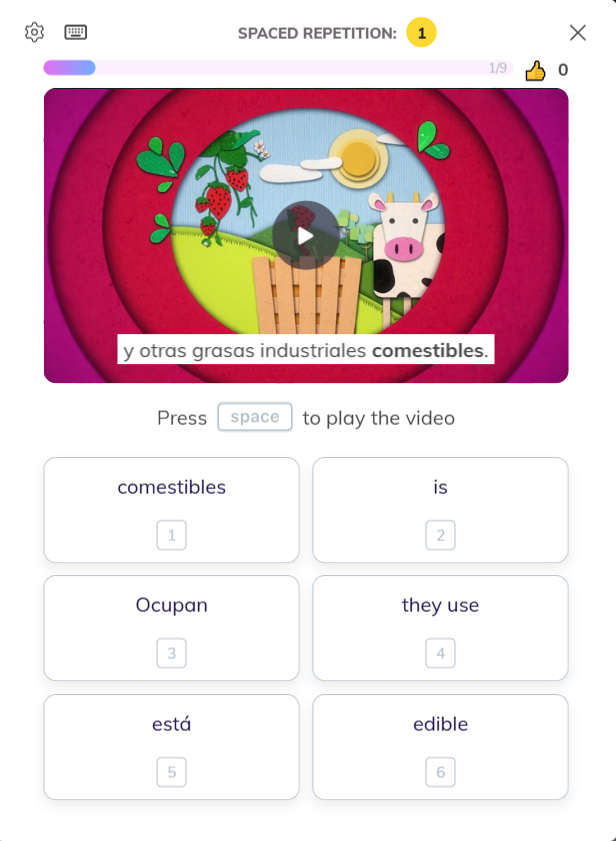
Step-by-step: Play Word Master
- Open the Word Master game in Practice.
- Watch the short video snippet.
- Choose the correct word from the list shown below the video.
- Track your score as you progress through multiple clips.
Recommended for: Beginners who are learning new words in context.
Review Your Vocabulary
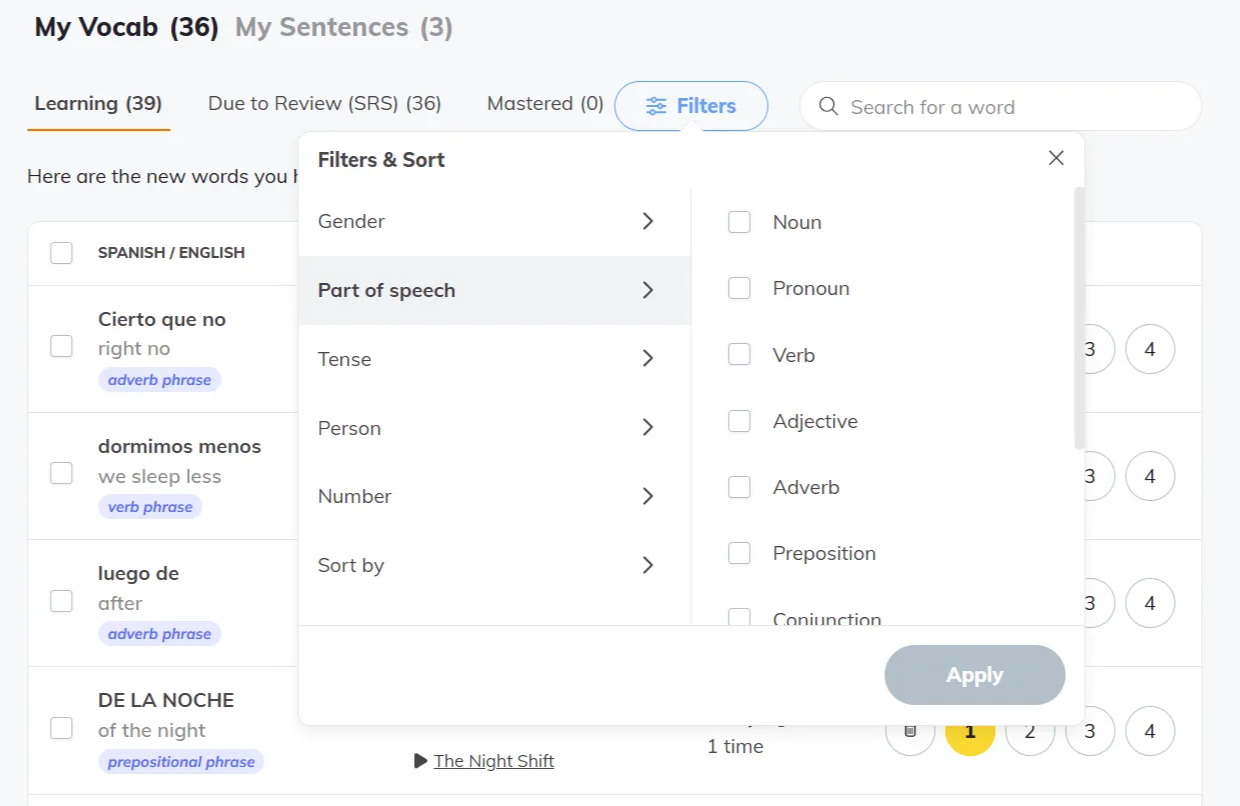
Go to ‘My Vocab’
See all the words and phrases you’ve saved from your shows.
Search for a word or phrase
Use the search bar to quickly find something specific.
Filter your list
Sort your vocabulary by:
- Part of speech
- Tense
- Person
- Number
- Learning first
Review and listen
Click any word to check its meanin and listen to its pronunciation.
Track your progress
See how many times you’ve seen the word and when you last reviewed it.
Manage your list
Remove known words or keep practicing the ones you want to reinforce.
Tips for getting the most out of the games
- Play daily for short sessions (5–15 minutes).
- Focus on words or sentences you struggle with — they will appear more often thanks to spaced repetition.
- Combine games with video watching for maximum retention.
- Use My Vocab and My Sentences sections to review anything you don’t remember.
Progress & Tracking
- Games automatically save results and performance, letting you review progress over time.
Need Help?
If a game isn’t working or your progress isn’t saving, try logging out and back in or clearing your browser cache. Still having trouble? Drop us a line at support@lingopie.com or open a ticket at Lingopie Support —we’re happy to help!
Was this article helpful?
That’s Great!
Thank you for your feedback
Sorry! We couldn't be helpful
Thank you for your feedback
Feedback sent
We appreciate your effort and will try to fix the article