If your Lingopie videos seem to be playing slower than usual, that’s completely normal — and intentional. When you select the Beginner level during signup, Lingopie automatically adjusts the playback speed to help you learn more comfortably. Slower audio makes it easier to follow the dialogue, understand pronunciation, and absorb new vocabulary.
The good news is that you can change the speed at any time.
How Playback Speed Works on Lingopie
Lingopie offers four learning-friendly speeds:
Beginner (0.65x) – A slower pace that helps you focus on pronunciation and subtitles.
Intermediate (0.75x) – A slightly faster option for learners building confidence.
Advanced (0.9x) – Close to native speed but still a bit slowed for clarity.
Full Speed (1x) – The original pace of the show, exactly as native speakers hear it.
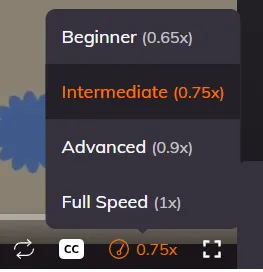
How to Change the Speed of Any TV Show or Movie
You can adjust the playback speed at any moment while watching:
- Play any video on Lingopie.
- Click the settings icon in the video player.
- Select Playback Speed.
- Pick your preferred speed: 0.65x, 0.75x, 0.9x, or 1x.
Your video will immediately play at the new speed.
Tip: If a show feels too challenging, try slowing it down. As your listening skills improve, gradually move up to full speed.
Need More Help?
If you have any issues adjusting video speed or notice playback problems, our support team is happy to help. Contact Lingopie Support, and we’ll guide you through any questions.
Was this article helpful?
That’s Great!
Thank you for your feedback
Sorry! We couldn't be helpful
Thank you for your feedback
Feedback sent
We appreciate your effort and will try to fix the article